Monday, 27 March 2017

Installing Windows10 on Aspire S7

Acer kindly have the Aspire S7 laptop on lockdown so you can’t easily boot from USB to install a new “clean” version of Windows.  There is a way around it though so here are the hoops you have to jump through:

1. Create a bootable Windows installer on your USB drive by downloading the Windows ISO then installing RUFUS to create your USB from the ISO.

2. Restart your computer and enter the BIOS screen.  You can do this before Windows boots up, by pressing F2 (by pressing function and 2 keys).  If F2 doesn’t work try F8 or F10.

3. Select “Boot” menu and change from UEFI to Legacy and set the boot order so that USB HDD is at the top.  Save and Exit.

4. Put your USB drive into your laptop and Windows installer should start.  You can now delete any old partitions and create a new drive.  The problem is this drive won’t be able to hold windows due to it being GPT partition style (arrrgh!) so we need to jump through an extra few hoops.

5. From the “Repair” menu option in the Windows installer window, select the command line option.

6. In the command line use the following commands:

7. You’ll now be able to go through the Windows installer and install into your drive.

Tuesday, 21 June 2016

Simple SQL script for all tables

SELECT
    'delete from ' + table_name 
FROM 
    information_schema.tables 
WHERE
    table_name LIKE 'tbl_junk_%'

Monday, 2 May 2016

Friday, 8 April 2016

Data reconciliation against SQL Servers

Requirement:
Compare two differently shaped data tables across two SQL Servers on a nightly basis.

Solution:
1. Create a view on each server that gets the data into a consistent (matching) shape.  Use CAST to ensure the datatype also match:


2. Create a RedGate SQLDataCompare project that compares the two views:


3. Run a SQLDataCompare command nightly:

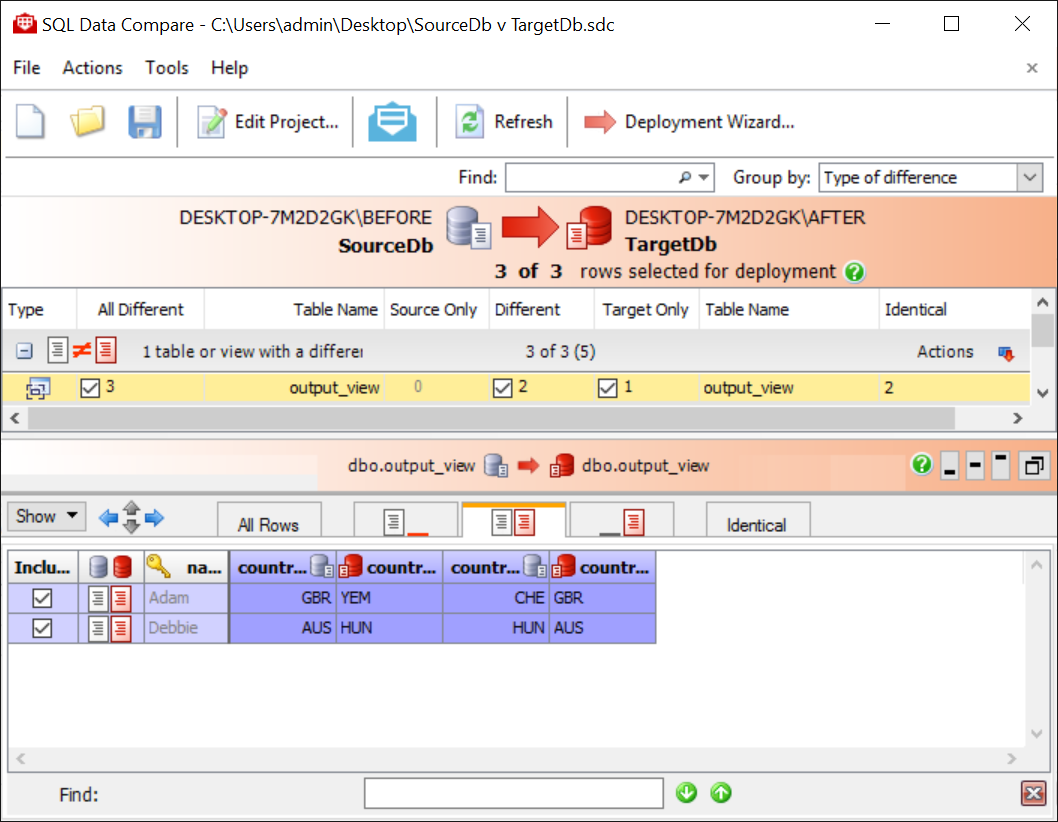
4. Which produces the following results:


In this case, 2 records were identical, two records were different and one record was found in "DB2" that didn't exist in "DB1".

Here is the summary and detail output, which is configurable from within your project file.  I've opted to some identical records here, in production you probably wouldn't want to:


5. Email yourself the results 

Thursday, 24 March 2016

Run all SQL files in a directory

Add this .bat file to the directory and run it:

for %%G in (*.sql) do sqlcmd /S servername /d databaseName -E -i"%%G"
pause


Adding speech marks around a list of data

# Ever had to add text characters to a list of data, like speech marks to each line before and after the data and a comma?

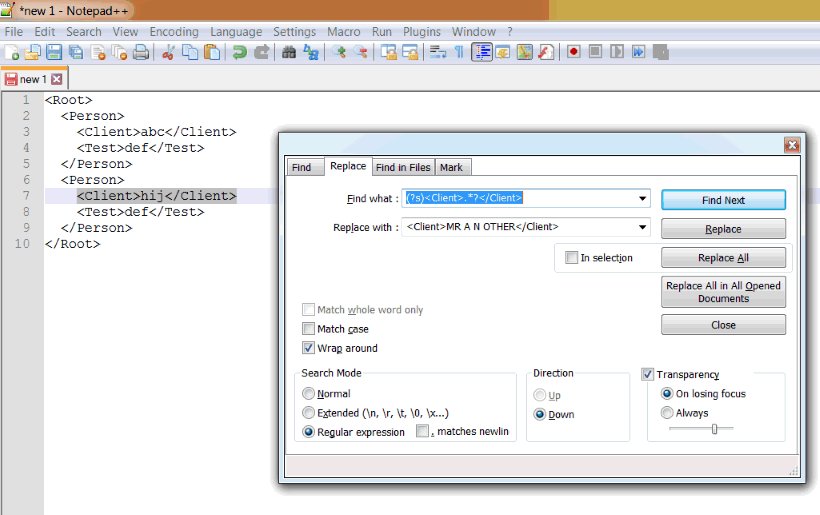
Here's an example of how to do this using Notepad++: