Overview
Here is an example of using WcfWebApi to produce a RESTful JSON data service. We have three areas to consider:
- Our data (model) is a simple Contact class
- Our service is exposed via IContractService interface and implemented as ContractService
- Our data store (repository) is exposed via IContactRepository interface and implemented as ContractRepository

RESTful Interface
HTTP Status (Return) Codes
| Http Code | Description | Examples |
| 200 | OK | Successful (read, update or delete) |
| 201 | CREATED | Successful (insert) |
| 400 | BAD REQUEST | Passing id as “X” when an integer is expected |
| 404 | NOT FOUND | Item not found (based on id) |
| 500 | SERVER ERROR | Exception thrown within service on server with the message contained within response body. |
Service Interface
[ServiceContract]
public interface IContactService
{
    [OperationContract]
    [WebGet(UriTemplate = "")]
    HttpResponseMessage GetAll();

    [OperationContract]
    [WebGet(UriTemplate = "{id}")]
    HttpResponseMessage Get(string id);

    [OperationContract]
    [WebInvoke(UriTemplate = "", Method = "POST")]
    HttpResponseMessage Insert(Contact contact);

    [OperationContract]
    [WebInvoke(UriTemplate = "", Method = "PUT")]
    HttpResponseMessage Update(Contact contact);

    [OperationContract]
    [WebInvoke(UriTemplate = "{id}", Method = "DELETE")]
    HttpResponseMessage Delete(string id);
}
Service Implementation
using System;
using System.Collections.Generic;
using System.Net;
using System.Net.Http;
using System.Text;
using Microsoft.ApplicationServer.Http.Dispatcher;
using RestDemo.Data;
using RestDemo.Service.Helpers;
using RestDemo.Service.Repositories;

namespace RestDemo.Service
{
    public class ContactService : IContactService
    {
        private const string ID_MUST_BE_INTEGER = "Id must be an integer";
        private const string ITEM_NOT_FOUND = "Item not found";
        private readonly IContactRepository _repo;

        public ContactService() : this(new ContactRepository())
        {
        }

        public ContactService(IContactRepository repository)
        {
            _repo = repository;
        }

        #region IContactService Members

        public HttpResponseMessage GetAll()
        {
            IEnumerable<Contact> contacts;
            DataOperationResponse dataResponse = _repo.GetAll(out contacts);
            HttpContent httpContent = GetHttpContent(contacts);
            HttpResponseMessage httpResponse = SetupHttpResponse(dataResponse, httpContent);
            return httpResponse;
        }

        public HttpResponseMessage Get(string id)
        {
            int intId;
            if (!Int32.TryParse(id, out intId))
                return new HttpResponseMessage(HttpStatusCode.BadRequest) { Content = new StringContent(ID_MUST_BE_INTEGER) };

            Contact contact;
            DataOperationResponse dataResponse = _repo.Get(intId, out contact);
            HttpContent httpContent = GetHttpContent(contact);
            HttpResponseMessage httpResponse = SetupHttpResponse(dataResponse, httpContent);
            return httpResponse;
        }

        public HttpResponseMessage Insert(Contact contact)
        {
            DataOperationResponse dataResponse = _repo.Insert(contact);
            HttpResponseMessage httpResponse = SetupHttpResponse(dataResponse);
            return httpResponse;
        }

        public HttpResponseMessage Update(Contact contact)
        {
            DataOperationResponse dataResponse = _repo.Update(contact);
            HttpResponseMessage httpResponse = SetupHttpResponse(dataResponse);
            return httpResponse;
        }

        public HttpResponseMessage Delete(string id)
        {
            int intId;
            if (!Int32.TryParse(id, out intId))
                return new HttpResponseMessage(HttpStatusCode.BadRequest) { Content = new StringContent(ID_MUST_BE_INTEGER) };

            DataOperationResponse dataResponse = _repo.Delete(intId);
            HttpResponseMessage httpResponse = SetupHttpResponse(dataResponse);
            return httpResponse;
        }

        #endregion

        private static HttpContent GetHttpContent(int id)
        {
            HttpContent httpContent = new StringContent(Convertors.ToJson(id).ToString(), Encoding.UTF8, MediaTypes.JSON);
            return httpContent;
        }

        private static HttpContent GetHttpContent(Contact contact)
        {
            HttpContent httpContent = contact
                                        != null
                                            ? new StringContent(Convertors.ToJson(contact).ToString(), Encoding.UTF8,
                                                                MediaTypes.JSON)
                                            : null;
            return httpContent;
        }

        private static HttpContent GetHttpContent(IEnumerable<Contact> contact)
        {
            HttpContent httpContent = contact
                                        != null
                                            ? new StringContent(Convertors.ToJson(contact).ToString(), Encoding.UTF8,
                                                                MediaTypes.JSON)
                                            : null;
            return httpContent;
        }

        private static HttpResponseMessage SetupHttpResponse(DataOperationResponse dataResponse, HttpContent content = null)
        {
            var response = new HttpResponseMessage();

            switch (dataResponse.Status)
            {
                case DataOperationStatus.Success:

                    if (dataResponse.Type == OperationType.Insert)
                    {
                        response.StatusCode = HttpStatusCode.Created;
                        response.Content = GetHttpContent(dataResponse.InsertedId);
                        response.Content.Headers.Expires = new DateTimeOffset(DateTime.Now.AddSeconds(30));
                    }
                    else
                    {
                        response.StatusCode = HttpStatusCode.OK;

                        if (content != null)
                            response.Content = content;
                    }

                    break;

                case DataOperationStatus.NotFound:

                    // REST best practise on delete is to return OK if resource
                    //  cannot be found but here we are explicitly returning Not Found
                    response.StatusCode = HttpStatusCode.NotFound;
                    response.Content = new StringContent(ITEM_NOT_FOUND);
                    break;

                case DataOperationStatus.Exception:
                    response.StatusCode = HttpStatusCode.InternalServerError;
                    response.Content = new StringContent(dataResponse.Exception.Message);
                    break;
            }

            return response;
        }

        /* You might also want set the ocation header:
            *   response.Headers.Location = new Uri("Contacts/" + item.Id, UriKind.Relative);
            */
    }
}
Service Unit Tests
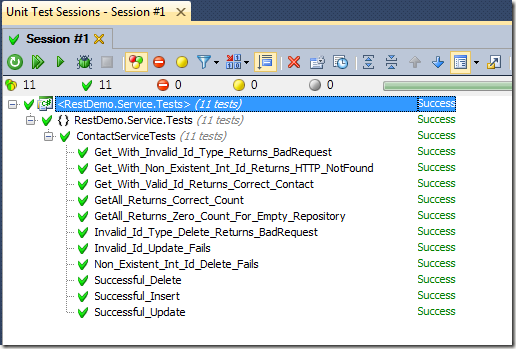
Hosting The Service in an ASP.NET Web Application
public class Global : HttpApplication
{
    protected void Application_Start(object sender, EventArgs e)
    {
        var webApiConfig = new WebApiConfiguration {EnableTestClient = true};
        RouteTable.Routes.SetDefaultHttpConfiguration(webApiConfig);
        RouteTable.Routes.MapServiceRoute<ContactService>("Contacts");
    }
}
Alternatively…. Console Hosting
The source code also contains an example of hosting within a client application:
private const string CONTACTS_URI = "http://localhost:8010/contacts";

private static void Main(string[] args)
{
    using (var host = new HttpServiceHost(typeof (ContactService), CONTACTS_URI))
    {
        host.Open();

        ExitOnReadKey();
    }

    private static void ExitOnReadKey()
    {
        Console.WriteLine("Press any key to exit...");
        Console.ReadLine();
    }
}
Client Access to the REST service interface from a Console App
private static void HttpGetAll()
{
    var client = new HttpClient();
    HttpResponseMessage response = client.Get(CONTACTS_URI);
    Console.WriteLine("GET: {0} RESPONSE: {1} \n{2}\n", CONTACTS_URI, response.StatusCode, response.Content.ReadAsString());
}

private static void HttpPost()
{
    var client = new HttpClient();
    HttpContent jsonContactNew = new StringContent("{\"Id\":0,\"Name\":\"Edward\"}", Encoding.UTF8, MediaTypes.JSON);
    HttpResponseMessage response = client.Post(CONTACTS_URI, jsonContactNew);
    Console.WriteLine("POST (INSERT CONTACT): {0} RESPONSE: {1} \n{2}\n", CONTACTS_URI, response.StatusCode, response.Content.ReadAsString());
}

private static void HttpPut()
{
    var client = new HttpClient();
    HttpContent jsonContactUpdated = new StringContent("{\"Id\":2,\"Name\":\"Ziggy\"}", Encoding.UTF8, MediaTypes.JSON);
    HttpResponseMessage response = client.Put(CONTACTS_URI, jsonContactUpdated);
    Console.WriteLine("PUT (UPDATE CONTACT ID 2): {0} RESPONSE: {1}\n", CONTACTS_URI, response.StatusCode);
}

private static void HttpDelete()
{
    var client = new HttpClient();
    const string uri = CONTACTS_URI + "/3";
    HttpResponseMessage response = client.Delete(uri);
    Console.WriteLine("DELETE (CONTACT ID 3): {0} RESPONSE: {1} \n", uri, response.StatusCode);
}

private static void HttpGet()
{
    var client = new HttpClient();
    const string uri = CONTACTS_URI + "/1";
    HttpResponseMessage response = client.Get(uri);
    Console.WriteLine("GET: {0} RESPONSE: {1} \n{2}\n", uri, response.StatusCode, response.Content.ReadAsString());
}

// Some methods worth knowing:
// 1. When expecting JSON in response body you can set the following header in the request:
//    client.DefaultRequestHeaders.Accept.Add(new MediaTypeWithQualityHeaderValue(MediaTypes.JSON));
//
// 2. When deserializing JSON single item within response body use the following:
//    var contact = response.Content.ReadAs<Contact>();
//
// 3. When deserializing JSON collection within response body use the following:
//    var contacts = response.Content.ReadAs<Contact[]>();
Output

Monitoring
HTTP
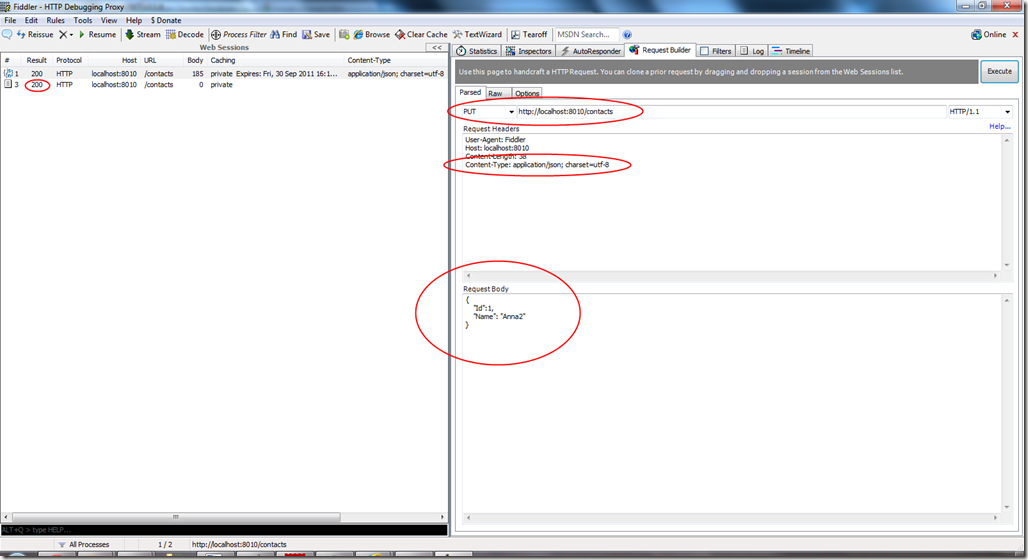
You can use Fiddler to monitor all HTTP requests and responses. The screenshot below shows Fiddler on the left hand side picking up all requests and responses from the WCF Web API Test Client (explained within Debugging below) on the right hand side.

Debugging
Configure the Firewall (if required)
Make sure you punch a hole in your firewall before testing (or change the port from 8010 to 80 in the source code).
On Windows 7 > Control Panel > Windows Firewall > Allow a Program or Feature through the Firewall

Fiddler
We are now ready to open Fiddler and use the Request Builder tab to enter your URI, set the HTTP verb (defaults to GET) and execute your request. On the left hand side you’ll see the HTTP response and headers, in this case the result was 200 (OK):

Then switch to the Inspectors tab to view the response body containing our data.

For PUT and POST requests you must add the following to the request headers:
Content-Type: application/json; charset=utf-8

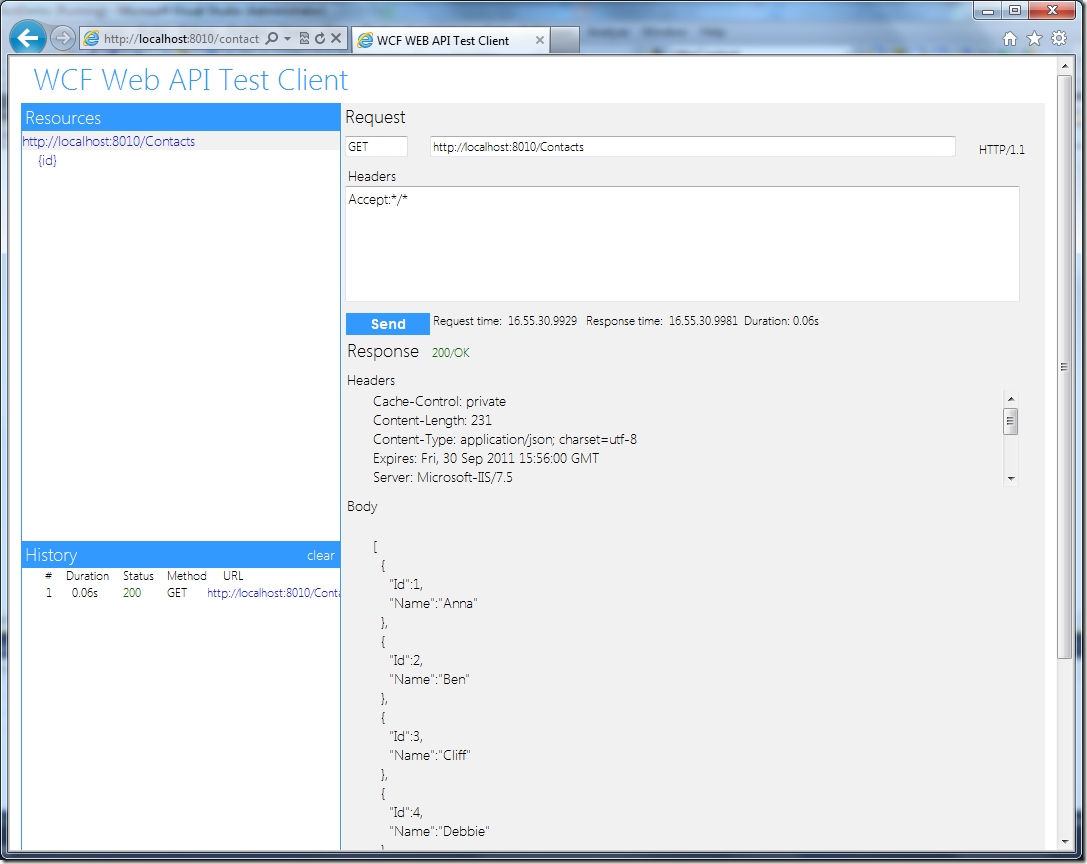
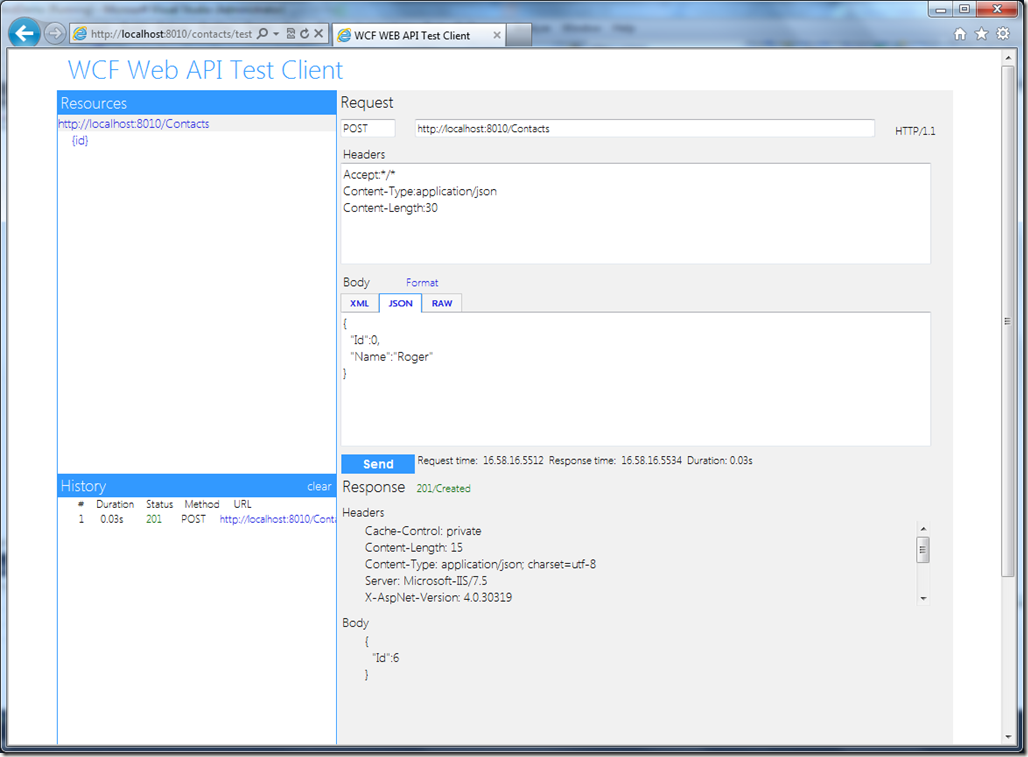
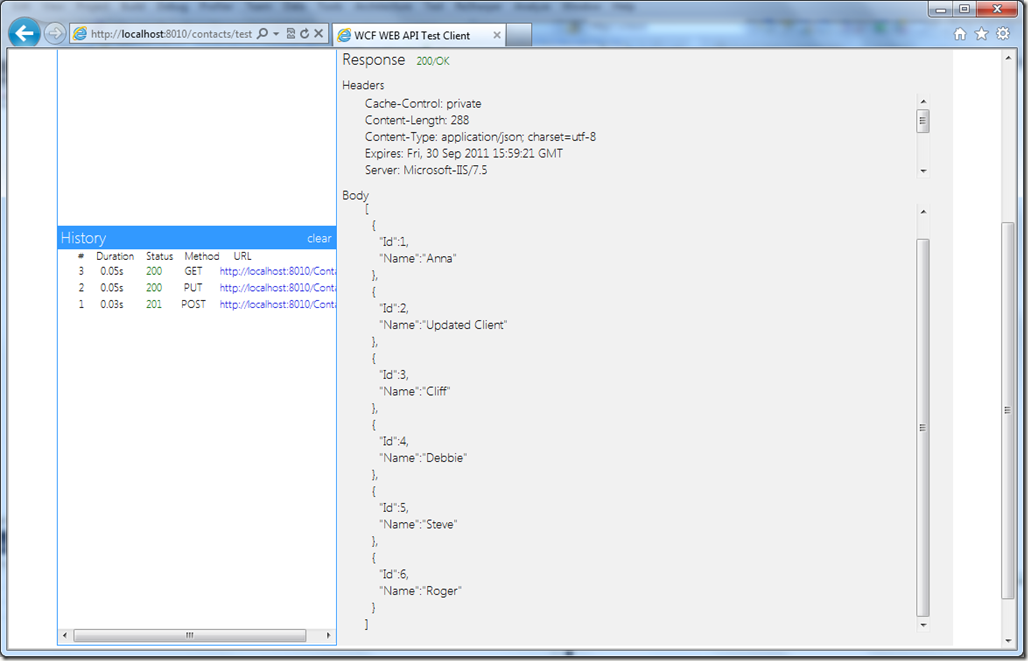
WCF Web API Test Client
We switched this new Microsoft Tool on in the Global.asax page with “EnableTestClient = true” which automatically routes:
In our case this would be http://localhost:8010/Contacts/Test:


Full source code: http://stevenhollidge.com/blog-source-code/RestDemo.zip


