Tuesday, 21 May 2019

RetroPie: Setting up a Raspberry Pi for retro gaming

Raspberry Pi from Amazon, along with case and PSU.  Fan is optional.

Buy some controllers or use just PS4, XboxOne or any other USB or Bluetooth controller.

Next either:
1) Download prebuilt image from Arcade Punks and install according to the instructions.
or
2) Go manual, download and install RetroPie:

From here you can load your own themes (menu look and feel) using the retropie menu:
https://www.youtube.com/watch?v=PZwRfLlh01M

Load your ROMs using either a browser: http://192.168.100.103:8000/

To enable using the Retropie Setup within the Retropie menus, watch here: https://www.youtube.com/watch?v=DgQDg6SzBDg


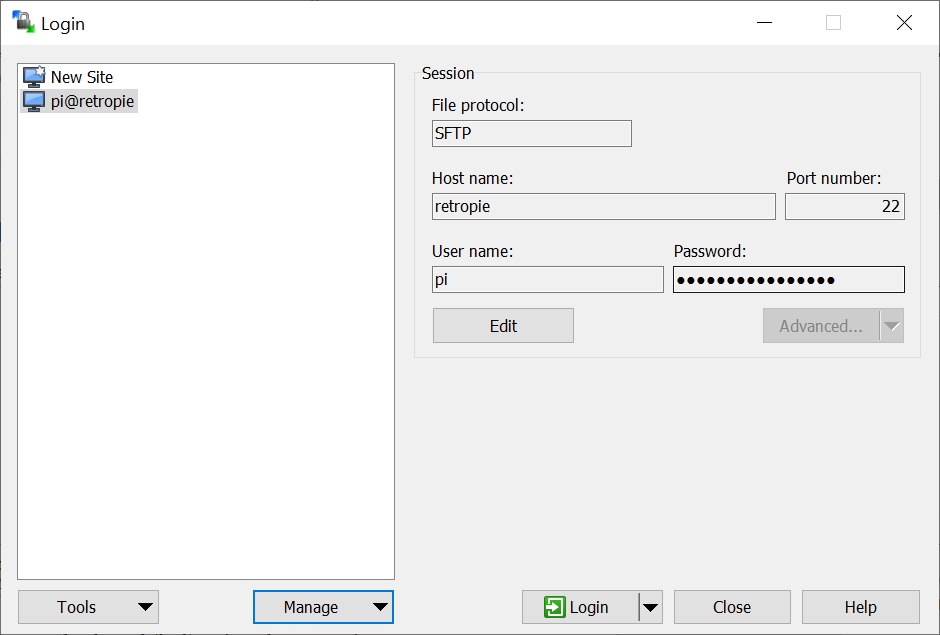
or remotely from a laptop using WinSCP:


For sending remote shell commands to the Pi you can use Putty:


The default information is:

Computer name:  retropie
User name:  pi
Password:  raspberry

You can download box art from the games using the builtin Emulation Station menus.  Alternatively, for a more comprehensive solution, covering more games and videos use the Scraper project:
https://github.com/RetroPie/RetroPie-Setup/wiki/scraper

Custom loading screen packs can be downloaded and applied for all consoles:
https://www.youtube.com/watch?v=a2sP8Q9_VdQ

Bezels (images to either side of the playing game) can be added using the Bezel project:
https://github.com/thebezelproject/BezelProject

You MUST only use ROMs from games you have at home.

Friday, 1 June 2018

How to add audio to a video file

Use AVIDemux. It's really quick and simple, and doesn't require reencoding of the video file so it's super fast! If you can't get that working, the free trial of AVS Video Editor 8.1 works fine. The only problem is a very small watermark in the center of the video which disappears after 60 seconds. Using this software does give you the benefit of more editing features like audio, text and transitions effects.

Monday, 3 April 2017

Fix: Protractor Expected Promise string bug

Protractor/Jasmine bug in Angular:

image

Fix by using:  expect<any>

image

How to fix 'router-outlet' is not a known element

When adding routing to an AngularCLI project you need to also update the startup test with the RouterTestingModule.

Failure to do so results in the following error when running ng test:

Here is the fix (click on the image to enlarge): 

image

Source code available here:

https://github.com/stevenh77/angular-lob-app/commit/f582ecf5034af3222a686ae0e9f237f6528aefa6

How to add routing to an AngularCLI project

As of 3rd April 2017, here is a simple example of how to add routing an AngularCLI project.

All the source code and changes to the AngularCLI project can be found here:

https://github.com/stevenh77/angular-lob-app/commit/30a6a60c0f5b195d5edb290e8f3df902ec605ccf

Step 1:  Create two new files in your app folder for basic components which will display the views we would like to route between.  I’ve called mine Home and Away.

Step 2: Edit the app.component.html in your app folder to contain the router-outlet.

Step 3: Create an ‘app.routes.ts’ file in your app folder.  This example defaults to displaying the HomeComponent and displays the AwayComponent for path “away”.

Step 4: Update the ‘app.module.ts’ file. This is the most complicated step.  I’ve shown the before and after files in the screenshot below (click image to enlarge):

Why all the changes to app.module.ts and what do they do?

Lines 5, 29, and 30:  In order for us to log the routes to the console on start up which is good for debugging, you need to import the Router module (line 5).  This gives us the ability to inject the router object into the constructor (line 29).  Line 30 logs the router to the console on app start up.

Lines 8, 9, 15 and 16:  Lets our app know about our new Home and Away components.

Lines 10, 22 and 24: Lets our app know about our new router and it’s configuration.

Here is our app running.  Note I also have Augury installed which is an Angular debugging tool which can help debug your Angular app including your Router.

Sunday, 2 April 2017

How to add AppVeyor to Angular app

Add a simple “.appveyor.yml” file to the root of your project:

Next sign in to https://ci.appveyor.com and mark your repo as an AppVeyor project.

Once you’ve added your project you can build your project within AppVeyor.  A build will also get kicked off with every new commit/push to your repo:

Add the following code to you readme.md file in GitHub to get a CI build badge.

Thursday, 30 March 2017

PhantomJS with AngularCLI and Karma

npm install --save-dev karma-phantomjs-launcher

Then update karma.config.js (lines 11 and 31):

image

You’ll now get the following error if you attempt to npm test or ng test:

image

To fix this just uncomment the following lines from your polyfill.ts:

image

Wallaby with Angular2 CLI

To get wallaby.js working after you have generated your project with angular-cli, you'll need to do the following:

Here are examples of Wallaby running my server code (simple data api returning json data) and the Angular UI:

image

image

Using lodash with Angular2 and TypeScript

You can use the same approach for Express, body-parser, cors, morgan, etc.

The typings file are stored under the folder node_modules/@types

Tuesday, 28 March 2017

How to hide JS and JS.map files in VSCode

hide-js-map

hide-js-map-done

Using Auth0, Angular and ASPNETCore WebAPI

Auth0 is great for integrating security into your applications.

In this blog we’ll look at how simple it is to setup Auth0 and then create an Angular app that uses it.

1) Go to Auth0.com and setup your account:

image

image

image

2) Now we’ve got our Auth0 account we can setup our ASPNetCore WebAPI:

image

image

You can then download or fork the startup project.

Finally, let’s setup our Angular2 app:

image

Then download or Fork on GitHub (I’m forking on GitHub)

image

If either fail to download or fork you can manually download from here:

https://github.com/auth0-samples/auth0-aspnetcore-webapi-sample

https://github.com/auth0-samples/auth0-angularjs2-systemjs-sample

Identify font on a web page

https://fount.artequalswork.com/

fount

Drag their button to your bookmarks bar in your browser then navigate to the webpage where you want to identify the font, click the button and locate the web font you want identified – very cool!

The gif above was generated using ScreenToGif, another very useful tool.

Monday, 27 March 2017

Live Writer not posting blogs with images

If you’re using Blogger and Live Writer no longer uploads your blogs containing images, here is the fix:

1. Open Google Photos

2. Create an Album called Open Live Writer

It’ll now work!