Here’s a quick heads up on how to display multiple pieces of data horizontally so that it wraps around onto the next line.

<ListBox ScrollViewer.HorizontalScrollBarVisibility="Disabled">
    <ListBox.ItemsPanel>
        <ItemsPanelTemplate>
            <WrapPanel Orientation="Horizontal" />
        </ItemsPanelTemplate>
    </ListBox.ItemsPanel>
</ListBox>
Ermmm, yeah that’s it! 
The list will auto rearrange if the window/listbox is resized.

Here’s the full source with the ListBox.ItemTemplate DataTemplate binding to a list of int’s, supplied in the C# code behind file.
<Window x:Class="WrappingListbox.MainWindow"
        xmlns="http://schemas.microsoft.com/winfx/2006/xaml/presentation"
        xmlns:x="http://schemas.microsoft.com/winfx/2006/xaml"
        xmlns:d="http://schemas.microsoft.com/expression/blend/2008"
        xmlns:mc="http://schemas.openxmlformats.org/markup-compatibility/2006"
        Title="Wrapping Listbox"
        Width="525"
        Height="350"
        Icon="ICON.ico"
        mc:Ignorable="d">
    <Grid>
        <ListBox x:Name="listbox1" ScrollViewer.HorizontalScrollBarVisibility="Disabled">
            <ListBox.ItemsPanel>
                <ItemsPanelTemplate>
                    <WrapPanel ItemHeight="100"
                               ItemWidth="100"
                               Orientation="Horizontal" />
                </ItemsPanelTemplate>
            </ListBox.ItemsPanel>
            <ListBox.ItemTemplate>
                <DataTemplate>
                    <StackPanel Margin="20" HorizontalAlignment="Center">
                        <Viewbox>
                            <Grid x:Name="backgroundGrid"
                                  Width="48"
                                  Height="48">
                                <Rectangle x:Name="Rect" Fill="Orange" />
                                <Label HorizontalContentAlignment="Center"
                                       Content="{Binding}"
                                       FontFamily="Segoe UI"
                                       FontSize="24"
                                       Foreground="White" />
                            </Grid>
                        </Viewbox>
                    </StackPanel>
                </DataTemplate>
            </ListBox.ItemTemplate>
        </ListBox>
    </Grid>
</Window>
using System.Linq;

namespace WrappingListbox
{
    public partial class MainWindow
    {
        public MainWindow()
        {
            InitializeComponent();
            listbox1.ItemsSource = Enumerable.Range(1, 100);
        }
    }
}
Source: http://stevenhollidge.com/blog-source-code/WrappingListbox.zip
Selection
To override the default blue background when an item is selected as shown here:

We can make the colour red by setting the ItemsContainerStyle:

<Window.Resources>
    <Style x:Key="CustomListBoxItemStyle" TargetType="{x:Type ListBoxItem}">
        <Style.Resources>
            <SolidColorBrush x:Key="{x:Static SystemColors.HighlightBrushKey}" Color="Red"/>
        </Style.Resources>
    </Style>
</Window.Resources>

<ListBox x:Name="listbox1"
            ItemContainerStyle="{StaticResource CustomListBoxItemStyle}"
            ScrollViewer.HorizontalScrollBarVisibility="Disabled">

.....

</ListBox>
Or maybe we’d prefer to have complete control over the the template.
In that case we can use a tool such as StyleSnooper to retrieve the full style including templates and amend them as we see fit.
In this example I set the selected background to a grey colour and rounded the corners.

<Window x:Class="WrappingListbox.MainWindow"
        xmlns="http://schemas.microsoft.com/winfx/2006/xaml/presentation"
        xmlns:x="http://schemas.microsoft.com/winfx/2006/xaml"
        xmlns:s="clr-namespace:System;assembly=mscorlib"
        Title="Wrapping Listbox"
        Width="525"
        Height="350"
        Icon="ICON.ico">

    <Window.Resources>
        <Style x:Key="CustomListBoxItemStyle" TargetType="{x:Type ListBoxItem}">
            <Style.Resources>
                <ResourceDictionary />
            </Style.Resources>
            <Setter Property="Panel.Background">
                <Setter.Value>
                    <SolidColorBrush>#00FFFFFF</SolidColorBrush>
                </Setter.Value>
            </Setter>
            <Setter Property="Control.HorizontalContentAlignment">
                <Setter.Value>
                    <Binding Path="HorizontalContentAlignment" RelativeSource="{RelativeSource Mode=FindAncestor, AncestorType=ItemsControl, AncestorLevel=1}" />
                </Setter.Value>
            </Setter>
            <Setter Property="Control.VerticalContentAlignment">
                <Setter.Value>
                    <Binding Path="VerticalContentAlignment" RelativeSource="{RelativeSource Mode=FindAncestor, AncestorType=ItemsControl, AncestorLevel=1}" />
                </Setter.Value>
            </Setter>
            <Setter Property="Control.Padding">
                <Setter.Value>
                    <Thickness>2,0,0,0</Thickness>
                </Setter.Value>
            </Setter>
            <Setter Property="Control.Template">
                <Setter.Value>
                    <ControlTemplate TargetType="{x:Type ListBoxItem}">
                        <Border Name="Bd"
                                Background="{TemplateBinding Panel.Background}"
                                BorderBrush="{TemplateBinding Border.BorderBrush}"
                                BorderThickness="{TemplateBinding Border.BorderThickness}"
                                Padding="{TemplateBinding Control.Padding}"
                                SnapsToDevicePixels="True">
                            <ContentPresenter HorizontalAlignment="{TemplateBinding Control.HorizontalContentAlignment}"
                                              VerticalAlignment="{TemplateBinding Control.VerticalContentAlignment}"
                                              Content="{TemplateBinding ContentControl.Content}"
                                              ContentStringFormat="{TemplateBinding ContentControl.ContentStringFormat}"
                                              ContentTemplate="{TemplateBinding ContentControl.ContentTemplate}"
                                              SnapsToDevicePixels="{TemplateBinding UIElement.SnapsToDevicePixels}" />
                        </Border>
                        <ControlTemplate.Triggers>
                            <Trigger Property="Selector.IsSelected">
                                <Setter TargetName="Bd" Property="CornerRadius" Value="15" />
                                <Setter TargetName="Bd" Property="Panel.Background" Value="Gainsboro" />
                                <Setter Property="TextElement.Foreground">
                                    <Setter.Value>
                                        <DynamicResource ResourceKey="{x:Static SystemColors.HighlightTextBrushKey}" />
                                    </Setter.Value>
                                </Setter>
                                <Trigger.Value>
                                    <s:Boolean>True</s:Boolean>
                                </Trigger.Value>
                            </Trigger>
                            <MultiTrigger>
                                <MultiTrigger.Conditions>
                                    <Condition Property="Selector.IsSelected">
                                        <Condition.Value>
                                            <s:Boolean>True</s:Boolean>
                                        </Condition.Value>
                                    </Condition>
                                    <Condition Property="Selector.IsSelectionActive">
                                        <Condition.Value>
                                            <s:Boolean>False</s:Boolean>
                                        </Condition.Value>
                                    </Condition>
                                </MultiTrigger.Conditions>
                                <Setter TargetName="Bd" Property="Panel.Background">
                                    <Setter.Value>
                                        <DynamicResource ResourceKey="{x:Static SystemColors.ControlBrushKey}" />
                                    </Setter.Value>
                                </Setter>
                                <Setter Property="TextElement.Foreground">
                                    <Setter.Value>
                                        <DynamicResource ResourceKey="{x:Static SystemColors.ControlTextBrushKey}" />
                                    </Setter.Value>
                                </Setter>
                            </MultiTrigger>
                            <Trigger Property="UIElement.IsEnabled">
                                <Setter Property="TextElement.Foreground">
                                    <Setter.Value>
                                        <DynamicResource ResourceKey="{x:Static SystemColors.GrayTextBrushKey}" />
                                    </Setter.Value>
                                </Setter>
                                <Trigger.Value>
                                    <s:Boolean>False</s:Boolean>
                                </Trigger.Value>
                            </Trigger>
                        </ControlTemplate.Triggers>
                    </ControlTemplate>
                </Setter.Value>
            </Setter>
        </Style>
    </Window.Resources>

    <Grid>
        <ListBox x:Name="listbox1"
                 ItemContainerStyle="{StaticResource CustomListBoxItemStyle}"
                 ScrollViewer.HorizontalScrollBarVisibility="Disabled">
            <ListBox.ItemsPanel>
                <ItemsPanelTemplate>
                    <WrapPanel ItemHeight="100"
                               ItemWidth="100"
                               Orientation="Horizontal" />
                </ItemsPanelTemplate>
            </ListBox.ItemsPanel>
            <ListBox.ItemTemplate>
                <DataTemplate>
                    <StackPanel Margin="20" HorizontalAlignment="Center">
                        <Viewbox>
                            <Grid x:Name="backgroundGrid"
                                  Width="48"
                                  Height="48">
                                <Rectangle x:Name="Rect" Fill="Orange" />
                                <Label HorizontalContentAlignment="Center"
                                       Content="{Binding}"
                                       FontFamily="Segoe UI"
                                       FontSize="24"
                                       Foreground="White" />
                            </Grid>
                        </Viewbox>
                    </StackPanel>
                </DataTemplate>
            </ListBox.ItemTemplate>
        </ListBox>
    </Grid>
</Window>
MouseEnter
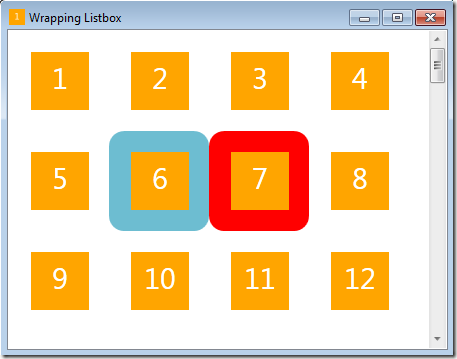
Using the VisualStateManager we have set the MouseEnter to animate to blue (the mouse is hovering over the number 6 although you can’t see the pointer in the image).
<VisualStateManager.VisualStateGroups>
    <VisualStateGroup Name="CommonStates">
        <VisualState Name="Normal" />
        <VisualState Name="MouseOver">
            <Storyboard>
                <ColorAnimation Storyboard.TargetName="Bd"
                                Storyboard.TargetProperty="(Border.Background).(SolidColorBrush.Color)"
                                To="#FF6DBDD1" />
            </Storyboard>
        </VisualState>
    </VisualStateGroup>
</VisualStateManager.VisualStateGroups>
This code is nested beneath a border control with the x:Name property set of “Bd”.


