CodeProject Note: The code featured in this blog posting was put together whilst working with David Marsh on the Tranquility.Net (Wcf App Server), an open source .Net app server available on CodePlex.
CodePlex project: http://tranquilitydotnet.codeplex.com/
The source code for this blog entry can be found on the CodePlex project (using the link above), click on the Source Code tab and download changeset 2671 (Initial commit of source).
Ok, hands up who loves IIS? Nope, me neither. Tired of it hogging RAM and eating up your server resources when hosting your lightweight Wcf services? Why not host all your services within a single Windows service on your server. But app pooling in IIS is pretty cool right, we can’t do without that – no problem, we’ll just wrap each of our services within it’s own AppDomain so we can recycle as required.
For an added bonus I’ve removed the Wcf configuration aka the A, B, C’s (Address, Binding and Contract’s) from the app.Config so you can dynamically load them at runtime. This means we could retrieve this information from a central configuration service or from a database, etc,
Ooh that all makes sense but it sounds hard? Nope, it’s easy.
Overview of Classes

The Classes Explained
Program.cs:
The main entry point of the program, on startup of the Windows the service this class just creates and runs a ServiceContainer.
ServiceContainer.cs, ConfigService.cs, WcfServiceConfig.cs and WcfService.cs:

When the ServiceContainer starts, it makes a call to the ConfigService to get the Wcf service information (assembly, service and contract names) along with the endpoint Uri address e.g net.tcp://localhost:8323/WcfServiceLibrary1/Service1. From this information the WcfAppServer can create the A. B, C for the Wcf configuration. The address is provided, the binding can be inferred from the start of the address and the contract and service types are read using reflection on the assembly.
Note: The service DLLs do not need to be referenced (within Visual Studio) by the WcfAppServer but the files will need to be placed in the same folder as the WcfAppServer.exe. This allows reflection to retrieve all required type information.
You can replace the ConfigService code for a call to your own config service or database. For this demonstration the ConfigService just returns hard coded information (see further down for code).
Once the ServiceContainer has its list of WcfServiceConfigs, it loops through each item first creating, then opening an IsolatedServiceHost for each service. A list of IsolatedServiceHosts is stored by the ServiceContainer.

IsolatedServiceHost.cs:
This class isolates each service host by creating a ServiceHostWrapper object within a new AppDomain. This ensures one service faulting will not affect any of the other services.

ServiceHostWrapper.cs:
This class simply serves as a wrapper around the generic .Net ServiceHost with the added bonus of being derived from MarshalByRefObject which allows for cross AppDomain communication. This enables our service container to send commands to our ServiceHost like Open, Close and Abort – which is pretty sweet! A couple of methods to easily setup the WCF config have also been included.

WcfServiceInstaller.cs:

This code allows the Windows Service to be installed from either a setup deployment project (.msi) or by using the InstallUtil command. For this example we’ll be using the InstallUtil command. The AfterInstall event will startup the service on our behalf service.
WcfHelper.cs:

This class infers and creates the binding from the start of an endpoint address. For example:
net.tcp://localhost:7834/Assembly/Service requires the net tcp binding
http://localhost:7834/Assembly/Service requires the HTTP binding
Right, it’s….. SHOWTIME!
Ok, so you ready for some code? Here’s how it’s done.
Note: This code was created using Visual Studio 2010 Ultimate edition.
Create a Windows Service from Visual Studio, called “WcfAppServer”:

Once project has been created, remove the default Service1.cs file from your project.
As we’ll be dealing with WCF services, we’ll want to a reference to the System.ServiceModel and System.ServiceProcess frameworks. Just right click on References and select Add Reference…, then scroll down and double click on System.ServiceModel and System.ServiceProcess.
A third reference System.Configuration.Install is also required by the service installer class.

In order to be able to build the project whilst we add each file, just to make sure we haven’t entered a typeo, you’ll want to comment out the reference to recently removed Service1 class.
Program.cs
Next up we’ll need to add our files, you can cut and paste from the code below or download these files from the source code links at the bottom of this blog.
WcfHelper.cs
ServiceHostWrapper.cs
IsolatedServiceHost.cs
WcfService.cs
WcfServiceConfig.cs
ConfigService.cs
ServiceContainer.cs
So we can install our Windows Service we’ll need to add an installer class.
WcfAppServerInstaller.cs
Finally, update the Program.cs file to instantiate our ServiceContainer class on start up:
We now need to add our two Wcf Service Libraries to the project which will act as sample libraries for our demo. From the Visual Studio main menu select File > Add > Add New Project, and then select WCF > WCF Service Library, accepting the default name and location for the project.

Repeat the process again to add a second WcfServiceLibrary, this time with the default name WcfServiceLibrary2.
To ensure each Wcf Service Library returns a unique message (so we can tell them apart during the demo), update each service to return a relevant message.
WcfServiceLibrary1.Service1.cs
And repeat for WcfServiceLibrary2.Service1.cs.
Now the next bit is optional and I’ll explain why. The WcfAppServer can load and host any Wcf Service classes from a .Net assembly. All you need to do is drop the dll into the same folder as the WcfAppServer.exe and using reflection, the service will load them from our “config service”.
For this demo I’m going to include the project references to save having to build and copy across the DLL files manually. To add the references to our WcfAppServer project right click on the WcfAppServer project > Add Reference…, then select Projects and double click on each of our new projects:

So with a quick “CTRL + SHIFT + B” to build the project in debug mode, we are now ready to install our new Windows Service. Just run the following commands from the Visual Studio Command Prompt:
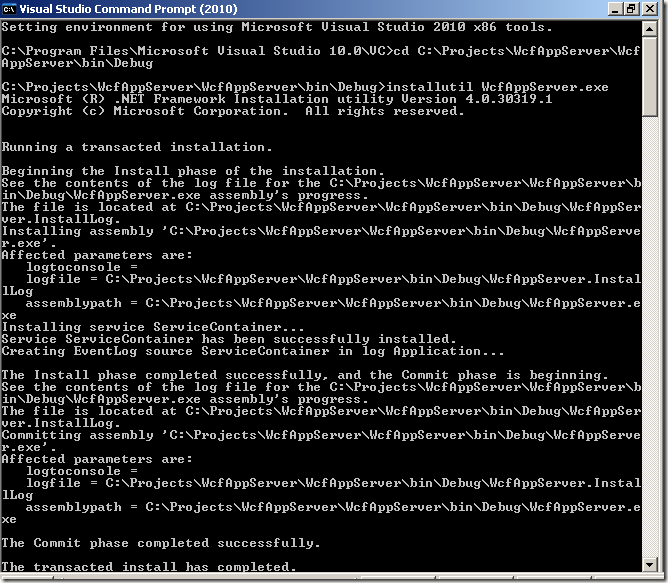
Note: The Visual Studio Command Prompt can be found in the Visual Studio tools shortcut folder (Start > Programs > Microsoft Visual Studio 2010 > Visual Studio Tools > Visual Studio Command Prompt (2010)).
Now we can start up our Wcf App Server Windows Service and test our hosting.
Open the Services mmc management window (Start > Control Panel > Administration Tools > Services)
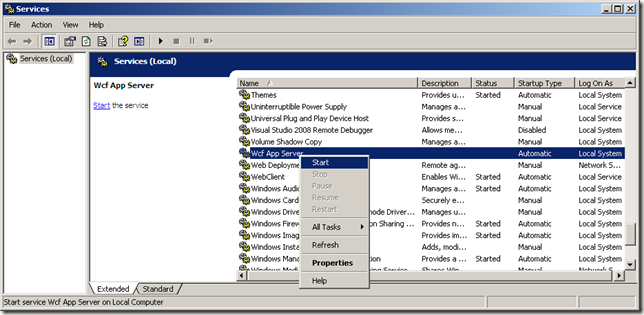
Now our Windows Service is up and running we can test them using the WcfTestClient. To add this Tool to Visual Studio, from the main menu in Visual Studio select Tools > External Tools, then enter the following details:

The WcfTestClient.exe can be found within C:\Program Files\Microsoft Visual Studio 10.0\Common7\IDE\ folder.
Note: This tool is installed relative to your Visual Studio installation folder (64 bit machines will be different from the above address).
You can now run the tool from within Visual Studio. From the main menu Tools > WcfTestClient
You can now add each of our services to the test client by right clicking on My Service Projects > Add Service…

Once you’ve added both the Wcf endpoints you’re ready to start test driving your services!
Testing WcfServiceLibrary1

Testing WcfServiceLibrary2


