Showing posts with label services. Show all posts

Wednesday, 5 November 2014

Angular Services vs Factories vs Providers

The following explanations were taking from various Angular docs, Misko code examples and StackOverflow posts.

What?

image
  • Service returns an instance of the actual function
  • Factory returns function’s return value
  • Provider returns the output of the function’s $get function


      How?

      When?

      Factory and Service are the most commonly used recipes. The only difference between them is that Service recipe works better for objects of custom type, while Factory can produce JavaScript primitives and functions.

      Factories are an example of the revealing module pattern.

      Providers have the advantage that they can be configured during module configuration phase.

      Under the hood

      Services, Factories as well as Values are all created under the hood using Providers.

      Saturday, 7 December 2013

      Using TPL to avoid callback hell

      In this example, we fire off three service calls which individually have a continuation of converting the resultant DTO to a model object.

      We then call a fourth service, to get the Spot which only fires once all the previous three service calls have completed and created their model object.

      var tasks = new Task[]
      {
      services.GetAsTask<DTOs.MoneyMarketRate>()
      .ContinueWith(t => MoneyMarketRate = Mapper.Map<DTOs.MoneyMarketRate, MoneyMarketRate>(t.Result)),

      services.GetAsTask<DTOs.InvestmentBoundaries>()
      .ContinueWith(t => InvestmentBoundaries = Mapper.Map<DTOs.InvestmentBoundaries, InvestmentBoundaries>(t.Result)),

      services.GetAsTask<DTOs.TradingDate>()
      .ContinueWith(t => TradingDate = Mapper.Map<DTOs.TradingDate, TradingDate>(t.Result)),
      };

      Task.Factory.ContinueWhenAll(
      tasks,
      ts => services.GetAsTask<DTOs.Spot>()
      .ContinueWith(t => Spot = Mapper.Map<DTOs.Spot, Spot>(t.Result)));
      You can take a look at my Silverlight source project here:  https://github.com/stevenh77/UsingTasksToAvoidCallbackHell
      The problem with this code is that the exceptions are not properly handled.  For that we can leverage async and await:
      try 
      {
      var tasks = new []
      {
      services.GetAsync<DTOs.MoneyMarketRate, MoneyMarketRate>(x => MoneyMarketRate = x),
      services.GetAsync<DTOs.InvestmentBoundaries, InvestmentBoundaries>(x => InvestmentBoundaries = x),
      services.GetAsync<DTOs.TradingDate, TradingDate>(x => TradingDate = x),
      };

      await TaskEx.WhenAll(tasks);
      await services.GetAsync<DTOs.Spot, Spot>(x => Spot = x);
      }
      catch (Exception e)
      {
      MessageBox.Show(e.Message);
      }

      I also refactored the service executor to use async and await and move the setting to the property to an action that can be passed in.
      public class ServiceExecutor
      {
      const string BaseAddress = "http://localhost:8080/Services/";

      public async Task GetAsync<TDto, TModel>(Action<TModel> actionToSetPropertyValue)
      {
      var client = new WebClient();
      var serviceName = typeof(TDto).Name + ".ashx";
      var response = await client.DownloadStringTaskAsync(new Uri(BaseAddress + serviceName, UriKind.Absolute));
      var dto = JsonConvert.DeserializeObject<TDto>(response);
      actionToSetPropertyValue.Invoke(Mapper.Map<TDto, TModel>(dto));
      }
      }

      Refactored source:  https://github.com/stevenh77/UsingTasksToAvoidCallbackHellWithAsyncAndWait/

      Friday, 19 July 2013

      Sequential vs Parallel Service Requests

      Sequential

      image
      public async Task<HttpResponseMessage> DownloadWithHttpClient()
      {
      var httpClient = new HttpClient();
      var request = new HttpRequestMessage(HttpMethod.Get, "http://stevenhollidge.com/sample.json?" + DateTime.Now.Ticks);
      var response = await httpClient.SendAsync(request);
      return response;
      }

      private async void HttpClientGoButton_OnClick(object sender, RoutedEventArgs e)
      {
      for (int i = 0; i < 9; i++)
      {
      await DownloadWithHttpClient();
      }
      }

      Parallel


      image
      public async Task<HttpResponseMessage> DownloadWithHttpClient()
      {
      var httpClient = new HttpClient();
      var request = new HttpRequestMessage(HttpMethod.Get, "http://stevenhollidge.com/sample.json?" + DateTime.Now.Ticks);
      var response = await httpClient.SendAsync(request);
      return response;
      }

      private async void HttpClientGoButton_OnClick(object sender, RoutedEventArgs e)
      {
      for (int i = 0; i < 9; i++)
      {
      DownloadWithHttpClient();
      }
      }

      Wednesday, 6 July 2011

      Comparing ProtoBuf-net Serialisation

      ProtoBuf-net is a C# engine for Protocol Buffers, a binary serialisation format created by Google.

      The project is written and maintained by Marc Gravell who currently works for Stack Overflow. 

      The source for this project can be found here: http://code.google.com/p/protobuf-net/

      probuf-net_logo

      I’ll be comparing the size of the output along with the speed for serialisation and deserialisation speed for the following methods:

      • Xml Serializer with binary formatter using the [Serializable] attribute
      • Data Contract Xml Serializer using the [DataContract] & [DataMember] attributes
      • Data Contract Json Serializer again using the [DataContract] & [DataMember]
      • ProtoBuf-net v2 BETA (but used by StackOverflow) using the reflection and [ProtoContract] & [ProtoMember] attributes
      • ProtoBuf-net v2 BETA (but used by StackOverflow) using a compiled model with no attributes on my data classes
      • ProtoSharp ALPHA (another C# Protocol Buffers serialisation engine by Torbjorn Gyllebring)

      For my tests I’ll be using the following model:

      model

      Here’s the object model view when populated with data:

      Data

      Simple to use

      Here is an example of how to create a Protobuf-net compiled model as opposed to attributes on the class and fields:

      Write and Read from Memory Stream

      ScreenShot077

      Shared Object References

      If you have multiple pointers to the same object you can utilise the graph support added in v2.

      This example was taken from a Stack Overflow question answered by Marc Gravell:

      http://stackoverflow.com/questions/6063729/does-protocol-buffers-support-serialization-of-object-graphs-with-shared-referenc/6063837#6063837

      Conclusion

      With Protobuf-net serialisation and deserialisation times are reduced so you should get a quick win out of the box.

      If the largest bottleneck in your solution is the transfer speed of data between processes this engine can greatly benefit your project as the data footprint is dramatically reduced.

      In order to accurately calculate if your solution would benefit from the use of ProtoBuf-net, you’ll need to set up scenarios that mimic your real world requirements as closely as possible.

      Downloads

      You can download the source code here:

      http://stevenhollidge.com/blog-source-code/Protobuf-net-Tests.zip

      Thursday, 16 June 2011

      Agile RESTful Json in Silverlight

      Following on from my previous post (Consuming POX in Silverlight), here’s a simple example of consuming a Json data service.

      ScreenShot012

      Data file (exposed via Http Handler on Web Server)

      [
      {
      name:'Shredded Wheat',
      price:4.95,
      description:'Two per serving with skimmed milk',
      calories:650
      },
      {
      name:'Fresh Fruit Salad',
      price:5.95,
      description:'Strawberries, bananas, apples and pears',
      calories:400
      },
      {
      name:'Scrambled Eggs on Toast',
      price:3.95,
      description:'Two eggs on two slices of wholewheat toast',
      calories:300
      },
      {
      name:'Bacon Roll',
      price:2.5,
      description:'Three slices of lean bacon in a granary roll',
      calories:600
      },
      {
      name:'Homestyle Breakfast',
      price:12.95,
      description:'Two eggs, bacon, sausage, toast and orange juice',
      calories:950
      }
      ]

      Http Handler (on Web Server)

      using System.IO;
      using System.Web;

      namespace AgileREST.Web
      {
      public class FoodService : IHttpHandler
      {

      public void ProcessRequest(HttpContext context)
      {
      var dataPath = HttpContext.Current.Server.MapPath("Food.json");

      using (var reader = new StreamReader(dataPath))
      {
      var result = reader.ReadToEnd();
      context.Response.ContentType = "text/json";
      context.Response.Write(result);
      }
      }

      public bool IsReusable
      {
      get
      {
      return false;
      }
      }
      }
      }

      Mapping (on the client)

      namespace AgileREST
      {
      public class Food
      {
      public string Name { get; set; }
      public decimal Price { get; set; }
      public string Description { get; set; }
      public int Calories { get; set; }
      }
      }

      Service Call (on the client)

      using System;
      using System.Collections.Generic;
      using System.Json;
      using System.Linq;
      using System.Net;
      using System.Runtime.Serialization.Json;
      using System.Windows;
      using System.Windows.Browser;
      using System.Windows.Controls;

      namespace AgileREST
      {
      public partial class MainPage : UserControl
      {
      public MainPage()
      {
      InitializeComponent();
      }

      void webClientForJson_OpenReadCompleted(object sender, OpenReadCompletedEventArgs e)
      {
      if (e.Error != null) return;

      // first option
      JsonArray foods = (JsonArray)JsonArray.Load(e.Result);
      var query = from food in foods
      select new Food()
      {
      Name = (string)food["name"],
      Price = (decimal)food["price"],
      Description = (string)food["description"],
      Calories = (int)food["calories"]
      };
      listboxFoodJson.ItemsSource = query.ToList();

      // second option
      // for implicit serialisation requires identical case sensitive name across Json and C# food objects)
      //DataContractJsonSerializer jsonSerializer = new DataContractJsonSerializer(typeof(List<Food>));
      //List<Food> foods = (List<Food>) jsonSerializer.ReadObject(e.Result);
      //listboxFoodJson.ItemsSource = foods;
      }

      private void btnGetFoodJson_Click(object sender, RoutedEventArgs e)
      {
      WebClient webClientForXml = new WebClient();
      webClientForXml.OpenReadCompleted += webClientForJson_OpenReadCompleted;
      webClientForXml.OpenReadAsync(new Uri(HtmlPage.Document.DocumentUri, "FoodService.ashx"));
      }
      }
      }

      Data binding (on the client)

      <UserControl x:Class="AgileREST.MainPage"
      xmlns="http://schemas.microsoft.com/winfx/2006/xaml/presentation"
      xmlns:x="http://schemas.microsoft.com/winfx/2006/xaml"
      xmlns:d="http://schemas.microsoft.com/expression/blend/2008"
      xmlns:mc="http://schemas.openxmlformats.org/markup-compatibility/2006"
      mc:Ignorable="d"
      d:DesignHeight="300" d:DesignWidth="700">

      <UserControl.Resources>
      <DataTemplate x:Key="itemTemplate">
      <StackPanel Orientation="Horizontal">
      <TextBlock x:Name="tbName"
      Width="170"
      Text="{Binding Path=Name}" />
      <TextBlock x:Name="tbPrice"
      Width="50"
      Text="{Binding Path=Price}" />
      <TextBlock x:Name="tbDescription"
      Width="300"
      Text="{Binding Path=Description}" />
      <TextBlock x:Name="tbCalories"
      Width="50"
      Text="{Binding Path=Calories}" />
      </StackPanel>
      </DataTemplate>
      </UserControl.Resources>

      <Grid x:Name="LayoutRoot" Background="White">
      <StackPanel Width="600" Margin="10">
      <TextBlock Text="Json Example" Margin="5" />
      <StackPanel x:Name="ColumnDescriptions" Orientation="Horizontal" Margin="5" >
      <TextBlock Text="Name" Width="170" />
      <TextBlock Text="Price" Width="50" />
      <TextBlock Text="Description" Width="300" />
      <TextBlock Text="Calories" Width="50" />
      </StackPanel>
      <ListBox x:Name="listboxFoodJson"
      Height="150"
      Margin="5"
      ItemTemplate="{StaticResource itemTemplate}" />
      <Button x:Name="btnGetFoodJson"
      Height="50"
      Margin="5"
      Click="btnGetFoodJson_Click"
      Content="Get Food From Json Service" />
      </StackPanel>
      </Grid>
      </UserControl>

      You can download the source code from the following link:


      http://stevenhollidge.com/blog-source-code/AgileREST.zip

      Saturday, 21 May 2011

      WCF RIA Services Overview

      Deborah Kurata gave an excellent session at the recent TechEd 2011 that serves as a great introduction to WCF RIA Services in Silverlight. I see this as an excellent resource that can be used to bring up to speed members of the team that have been focused on other technologies in the past.

      To view or download the video direct you can visit the Channel9 website:

      http://channel9.msdn.com/Events/TechEd/NorthAmerica/2011/DEV210

      Wednesday, 9 March 2011

      How to create JSON WCF RESTful Service in 60 seconds

      WCF makes it very easy to expose JSON data over a RESTful interface, as long as you are aware of a couple of “gotchas” in advance.

      This article will explain those to you, so you can focus on your business logic rather than configuration of your WCF services.

      We start this example by creating a WCF Service Library project:

      new-project

      Next we need to add a reference to the System.ServiceModel.Web framework.  Right click on your project file and select Add Reference…

      add-reference

      As this framework is not part of the .Net Framework 4 Client Profile, Visual Studio kindly informs us that it will update our target Framework to the full version of .Net Framework 4.  Click Yes to accept this change:

      target-change

      We are now ready to update our code.

      Copy and paste the following code into the App.Config file:

      <?xml version="1.0"?>
      <configuration>
      <system.serviceModel>
      <services>
      <service name="WcfJsonRestService.Service1">
      <endpoint address="http://localhost:8732/service1"
      binding="webHttpBinding"
      contract="WcfJsonRestService.IService1"/>
      </service>
      </services>
      <behaviors>
      <endpointBehaviors>
      <behavior>
      <webHttp />
      </behavior>
      </endpointBehaviors>
      </behaviors>
      </system.serviceModel>
      <startup>
      <supportedRuntime version="v4.0" sku=".NETFramework,Version=v4.0"/>
      </startup>
      </configuration>


      Notice the binding is set to webHttpBinding as opposed to the normal project template default of wsHttpBinding. 


      The other important change is the addition of an endpointBehavior for WebHttp.


      These two changes are required to enable JSON over REST for WCF.


      Copy and paste the following code into the IService1 file:

      using System.ServiceModel;

      namespace WcfJsonRestService
      {
      [ServiceContract]
      public interface IService1
      {
      [OperationContract]
      Person GetData(string id);
      }
      }


      Notice we are accepting an “In” parameter for id of datatype string.  For this example we are returning a custom type of Person.


      Copy and paste the following code into the Service1.cs file:

      using System;
      using System.ServiceModel.Web;

      namespace WcfJsonRestService
      {
      public class Service1 : IService1
      {
      [WebInvoke(Method = "GET",
      ResponseFormat = WebMessageFormat.Json,
      UriTemplate = "data/{id}")]
      public Person GetData(string id)
      {
      // lookup person with the requested id
      return new Person()
      {
      Id = Convert.ToInt32(id),
      Name = "Leo Messi"
      };
      }
      }

      public class Person
      {
      public int Id { get; set; }
      public string Name { get; set; }
      }
      }


      The key elements here are the attributes applied to the method.  We are enabling the method to be called over HTTP GET, returning the data in Json format and setting the Uri template to ensure we are using a RESTful interface.


      To test your brand new service we will pass in the id value of 10 simply by opening your favourite browser and pasting in the following URL: 


      http://localhost:8732/Service1/data/10


      json-browser


      Source code:  WcfJsonRestService.zip


      Example With Multiple Parameters

      using System;
      using System.ServiceModel;
      using System.ServiceModel.Web;

      namespace WcfJsonRestService
      {
      [ServiceContract]
      public interface IService1
      {
      [OperationContract]
      Person GetData(string id);

      [OperationContract]
      Person GetDataWithTwoParams(string id, string name);
      }

      public class Service1 : IService1
      {
      [WebInvoke(Method = "GET",
      ResponseFormat = WebMessageFormat.Json,
      UriTemplate = "data/{id}")]
      public Person GetData(string id)
      {
      // lookup person with the requested id
      return new Person()
      {
      Id = Convert.ToInt32(id),
      Name = "Leo Messi"
      };
      }

      [WebInvoke(Method = "GET",
      ResponseFormat = WebMessageFormat.Json,
      UriTemplate = "data/{id}/{name}")]
      public Person GetDataWithTwoParams(string id, string name)
      {
      // create person with the requested id and name
      return new Person()
      {
      Id = Convert.ToInt32(id),
      Name = name
      };
      }
      }

      public class Person
      {
      public int Id { get; set; }
      public string Name { get; set; }
      }
      }

      WCF Services with Zero Config (on both the Host and Client)

      When dealing with your WCF services have you ever gotten so confused with all the settings in your App.Config that you just wanted to throw the file away? Well now you can, and I’ll show you how.

      With .Net 4.0 WCF allows developers to take the convention over configuration approach to their services. This means that by omitting configuration settings, the .Net framework will create defaults in their place and make your services fully available and operational.

      So lets check out how it’s done!

      First, create a new WCF Service Library project and call it WcfZeroConfig:

      new-project

      Now, and this is good bit, delete the App.Config file. Just right click on the file, select Delete – feels good right?!

      The WCF Service Library project template makes two methods available for us by default and for this artictle we’ll be using the GetData(int value) method for our example.

      As our WCF library is now complete, we are going to add another project to our solution to host the service. In production you would usually use IIS or a Windows Service to host your WCF Service Library but for this simple example we are going to use a Console application.

      From the Visual Studio main menu select File > Add > New Project > Windows > Console Application and name the project WcfHost:

      Console-project

      As this project will be acting as the host we’ll need to add references to both the System.ServiceModel assembly and our WCF Service Library project. Right click on the WcfHost Project file, select Add Reference and select System.ServiceModel framework:

      servicemodel-ref

      Now select Projects (in the top left hand corner) and double click the WcfZeroConfig and press the close button.

      Add-reference

      To complete the host, copy and paste the following code into the Program.cs file:


      As you can see it takes one line of code to create the ServiceHost object, passing in an Endpoint address and a single method call to open the host channel to make the service available.


      On startup of the host, under the covers WCF (in .Net 4.0) will detect that no Binding or Contract has been supplied, either in our App.Config file or from our code, and will provide default values. From the Endpoint address the framework can see we are using Http and will provide the default binding of basicHttpBinding. The contract type of IService1 will also be inferred from the Service1 concrete class.


      To run the host, select the WcfHost project and press F5 to build and run the application.


      wcfhost


      We are now ready to create the client application to consume our WCF Service. From the Visual Studio main menu select File > Add > New Project > Windows > Console Application and name the project WcfClient:


      wcfclient


      As before you’ll need to add the System.ServiceModel framework (right click on the project file > Add Reference…) along with the WcfZeroConfig project, this is so that the WcfClient project is aware of the WCF Service contract type “IService1”.


      To complete our client, just paste in the following lines of code into the Program.cs file:


      To complete our example:


      1) You’ll first need to build the solution by right clicking on the solution file and selecting Build Solution


      2) Run the C:\Projects\WcfZeroConfig\WcfHost\bin\Debug\WcfHost.exe file


      3) And finally, run the C:\Projects\WcfZeroConfig\WcfClient\bin\Debug\WcfClient.exe file and enter a number


      That number then gets passed to our WCF Service and our client receives the result.


      WcfClient-result


      The full source code is available here: WcfZeroConfig.zip

      Sunday, 6 March 2011

      How to host multiple isolated WCF services within a single Windows service with zero App.config

      Note: The code featured in this blog posting was put together whilst working with David Marsh on the Tranquility.Net (Wcf App Server), an open source .Net app server available on CodePlex.

      CodePlex project: http://tranquilitydotnet.codeplex.com/

      The source code for this blog entry can be found on the CodePlex project (using the link above), click on the Source Code tab and download changeset 2671 (Initial commit of source).

      Ok, hands up who loves IIS? Nope, me neither. Tired of it hogging RAM and eating up your server resources when hosting your lightweight Wcf services? Why not host all your services within a single Windows service on your server. But app pooling in IIS is pretty cool right, we can’t do without that – no problem, we’ll just wrap each of our services within it’s own AppDomain so we can recycle as required.

      For an added bonus I’ve removed the Wcf configuration aka the A, B, C’s (Address, Binding and Contract’s) from the app.Config so you can dynamically load them at runtime. This means we could retrieve this information from a central configuration service or from a database, etc,

      Ooh that all makes sense but it sounds hard? Nope, it’s easy.

      Overview of Classes

      Overview-of-classes

      The Classes Explained

      Program.cs:

      The main entry point of the program, on startup of the Windows the service this class just creates and runs a ServiceContainer.

      ServiceContainer.cs, ConfigService.cs, WcfServiceConfig.cs and WcfService.cs:

      ServiceContainer-and-Config-class

      When the ServiceContainer starts, it makes a call to the ConfigService to get the Wcf service information (assembly, service and contract names) along with the endpoint Uri address e.g net.tcp://localhost:8323/WcfServiceLibrary1/Service1. From this information the WcfAppServer can create the A. B, C for the Wcf configuration. The address is provided, the binding can be inferred from the start of the address and the contract and service types are read using reflection on the assembly.

      Note: The service DLLs do not need to be referenced (within Visual Studio) by the WcfAppServer but the files will need to be placed in the same folder as the WcfAppServer.exe. This allows reflection to retrieve all required type information.

      You can replace the ConfigService code for a call to your own config service or database. For this demonstration the ConfigService just returns hard coded information (see further down for code).

      Once the ServiceContainer has its list of WcfServiceConfigs, it loops through each item first creating, then opening an IsolatedServiceHost for each service. A list of IsolatedServiceHosts is stored by the ServiceContainer.

      ServiceContainer_OnStart

      IsolatedServiceHost.cs:

      This class isolates each service host by creating a ServiceHostWrapper object within a new AppDomain. This ensures one service faulting will not affect any of the other services.

      IsolatedServiceHost

      ServiceHostWrapper.cs:

      This class simply serves as a wrapper around the generic .Net ServiceHost with the added bonus of being derived from MarshalByRefObject which allows for cross AppDomain communication. This enables our service container to send commands to our ServiceHost like Open, Close and Abort – which is pretty sweet! A couple of methods to easily setup the WCF config have also been included.

      ServiceHostWrapper

      WcfServiceInstaller.cs:

      installer

      This code allows the Windows Service to be installed from either a setup deployment project (.msi) or by using the InstallUtil command. For this example we’ll be using the InstallUtil command. The AfterInstall event will startup the service on our behalf service.

      WcfHelper.cs:

      WcfHelper

      This class infers and creates the binding from the start of an endpoint address. For example:

      net.tcp://localhost:7834/Assembly/Service requires the net tcp binding

      http://localhost:7834/Assembly/Service requires the HTTP binding

      Right, it’s….. SHOWTIME!

      Ok, so you ready for some code? Here’s how it’s done.

      Note: This code was created using Visual Studio 2010 Ultimate edition.

      Create a Windows Service from Visual Studio, called “WcfAppServer”:

      Create-windows-service

      Once project has been created, remove the default Service1.cs file from your project.

      As we’ll be dealing with WCF services, we’ll want to a reference to the System.ServiceModel and System.ServiceProcess frameworks. Just right click on References and select Add Reference…, then scroll down and double click on System.ServiceModel and System.ServiceProcess.

      A third reference System.Configuration.Install is also required by the service installer class.

      Add-reference

      In order to be able to build the project whilst we add each file, just to make sure we haven’t entered a typeo, you’ll want to comment out the reference to recently removed Service1 class.

      Program.cs

      Next up we’ll need to add our files, you can cut and paste from the code below or download these files from the source code links at the bottom of this blog.


      WcfHelper.cs


      ServiceHostWrapper.cs


      IsolatedServiceHost.cs


      WcfService.cs

      WcfServiceConfig.cs

      ConfigService.cs


      ServiceContainer.cs


      So we can install our Windows Service we’ll need to add an installer class.


      WcfAppServerInstaller.cs


      Finally, update the Program.cs file to instantiate our ServiceContainer class on start up:


      We now need to add our two Wcf Service Libraries to the project which will act as sample libraries for our demo. From the Visual Studio main menu select File > Add > Add New Project, and then select WCF > WCF Service Library, accepting the default name and location for the project.


      Add-new-wcf-project-1


      Repeat the process again to add a second WcfServiceLibrary, this time with the default name WcfServiceLibrary2.


      To ensure each Wcf Service Library returns a unique message (so we can tell them apart during the demo), update each service to return a relevant message.


      WcfServiceLibrary1.Service1.cs


      And repeat for WcfServiceLibrary2.Service1.cs.


      Now the next bit is optional and I’ll explain why. The WcfAppServer can load and host any Wcf Service classes from a .Net assembly. All you need to do is drop the dll into the same folder as the WcfAppServer.exe and using reflection, the service will load them from our “config service”.


      For this demo I’m going to include the project references to save having to build and copy across the DLL files manually. To add the references to our WcfAppServer project right click on the WcfAppServer project > Add Reference…, then select Projects and double click on each of our new projects:


      Add-project-reference


      So with a quick “CTRL + SHIFT + B” to build the project in debug mode, we are now ready to install our new Windows Service. Just run the following commands from the Visual Studio Command Prompt:
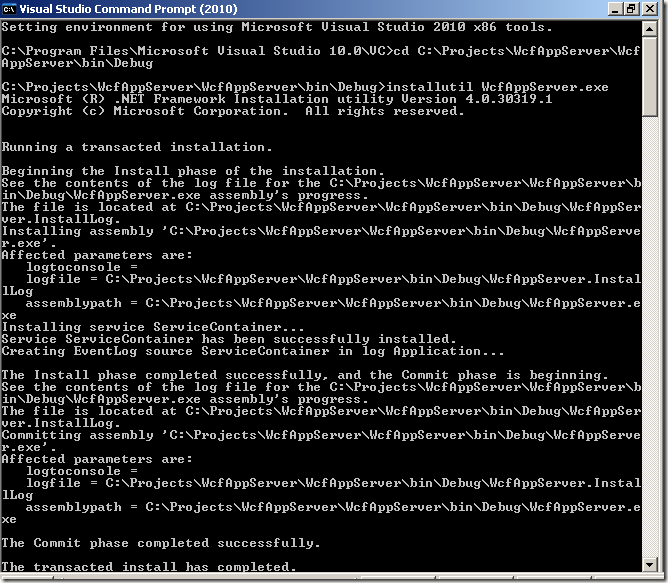

      install-service


      Note: The Visual Studio Command Prompt can be found in the Visual Studio tools shortcut folder (Start > Programs > Microsoft Visual Studio 2010 > Visual Studio Tools > Visual Studio Command Prompt (2010)).


      Now we can start up our Wcf App Server Windows Service and test our hosting.


      Open the Services mmc management window (Start > Control Panel > Administration Tools > Services)
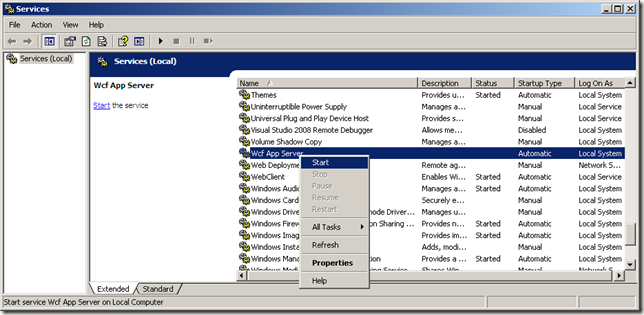

      Start-Service


      Now our Windows Service is up and running we can test them using the WcfTestClient. To add this Tool to Visual Studio, from the main menu in Visual Studio select Tools > External Tools, then enter the following details:


      WcfTestClient


      The WcfTestClient.exe can be found within C:\Program Files\Microsoft Visual Studio 10.0\Common7\IDE\ folder.


      Note: This tool is installed relative to your Visual Studio installation folder (64 bit machines will be different from the above address).


      You can now run the tool from within Visual Studio. From the main menu Tools > WcfTestClient


      You can now add each of our services to the test client by right clicking on My Service Projects > Add Service…


      add-service


      Once you’ve added both the Wcf endpoints you’re ready to start test driving your services!


      Testing WcfServiceLibrary1


      testing-nettcp-1


      Testing WcfServiceLibrary2


      testing-nettcp-2